
TLDR
Speed up WooCommerce by finding where the time goes before fixing anything: the server, the database or the page. On stores Nera Marketing builds, hosts or manages, the fixes that worked were a query rewritten from 8 seconds to 1, 4,066 leftover booking records removed and a clashing payment plugin switched off, not more server.
To speed up a WooCommerce store, find out where the time goes before you change anything. A slow store is slow in one of three places: the server, the database or the page itself, and each needs a different fix. A bigger server does nothing for a slow database query, and more caching does nothing for a slow admin. The examples here come from WooCommerce stores Nera Marketing builds, hosts or looks after, from booking sites to high-volume stores that sell out timed releases in minutes.
How do you find out what is slowing your store down?
Measure what real customers get, then time the shop, the checkout and the admin separately. Google’s Core Web Vitals guidance sets three targets: the main content should load within 2.5 seconds, the page should respond to a tap within 200 milliseconds, and the layout should shift by no more than 0.1. A page passes when it meets all three at the 75th percentile of real page loads, on mobile and desktop separately.
A lab score from one test on a fast connection is an estimate. Field data from real visitors, in Search Console or PageSpeed Insights, shows what customers actually experienced. Use the lab test to find the cause, and field data to decide whether there is a problem at all. Nera Marketing builds WooCommerce stores with fast pages, clean product data and structured content that Google and AI models can read, so the right customers find them.
Then split the store into its three parts, because each points to a different cause. WooCommerce’s own guide to choosing hosting treats a checkout whose time to first byte is consistently over 800 milliseconds as a sign the store needs more from its server. A slow product page with a fast checkout usually means images or scripts. A slow checkout with fast product pages usually means a plugin or the server.

Is your admin slow too?
If the admin is slow as well as the shop, look at the database or the server before anything else. A page cache serves stored copies of pages to visitors, but the admin is built fresh for every click, so no amount of page caching can speed it up. A store whose admin and front end slow down together, gradually, over months, is usually carrying data it no longer needs. That was the symptom on the Freedom Fields store described below.
Which fix should you try first?
Match the symptom to its likely cause, and start with the cheapest check. Most of the fixes below cost nothing but time, and only two involve paying for more hosting.
| Symptom | Likely cause | Check first | Fix | Cost |
|---|---|---|---|---|
| Shop and admin both slow, all day, getting worse | Database carrying leftover records or a slow query | The slowest queries and the largest tables | Back up, then remove the leftover data or rewrite the query | Developer time |
| Slow only at your busiest sale moments | Not enough PHP workers | Requests queued or refused at peak | More workers, or a server of its own | Hosting plan |
| Checkout slow, the rest of the shop fine | A plugin running at checkout, or two payment plugins clashing | Switch plugins off one at a time on a copy of the store | Remove, replace or reconfigure the plugin | Free to low |
| Wrong stock or prices on screen | Page cache serving old or wrong copies | Load the page logged out, from another country | Shorter cache lifetime for live data | Free |
| Cached pages still slow | Something bypassing the cache | Tracking query strings, logged-in visitors | Make the cache ignore tracking parameters | Free |
| Product pages slow on phones | Images loading too early or too large | PageSpeed Insights field data for the page | Lazy loading and smaller image sizes | Free to low |
| Order emails and background jobs late | WP-Cron waiting for visitors, or a backed-up queue | WooCommerce > Status > Scheduled Actions | A real server cron, and pause the plugin flooding the queue | Free |
| Every page slow, even simple ones | Server too small or shared with busy neighbours | Memory and CPU use at your busiest hour | Better hosting | Hosting plan |
Is it the server or the code?
A slow store is a code problem whenever the server has room to spare: if memory and processing sit well below their limits while the store is slow, a bigger server will not change it. Check how much of the server is in use before paying for more of it.
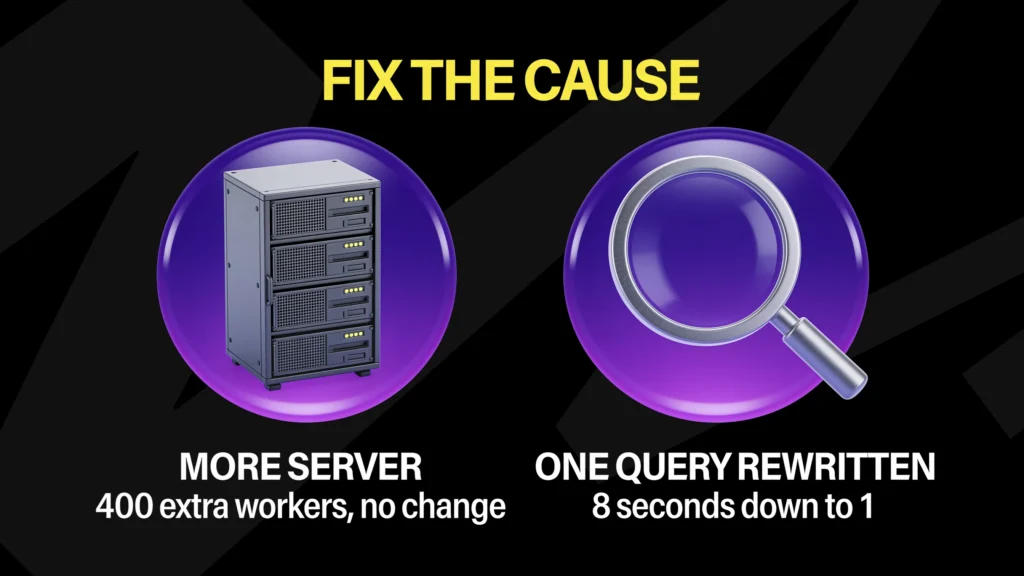
On one store Nera Marketing managed but did not build, a text message campaign slowed the checkout to a crawl. Adding a fourth server container and 400 PHP workers made no difference, because each container was using under 1 GB of memory. The cause was one database query in a third-party plugin, taking 8 seconds to run on every order. Rewritten, it ran in 1 second. Orders came through and pending payments fell, because the redirect to payment was fast again. The fault was in that plugin, not in the store’s build.
The managed hosting guide covers how to tell a hosting problem from a code problem in more detail, including what to ask a host before you upgrade.
How many PHP workers does a store need?
A store needs enough PHP workers that requests never queue at its busiest moment. A PHP worker builds one page or one checkout step at a time, and WooCommerce’s hosting guide suggests looking for 5 to 10 dedicated workers as a starting point. Busy stores need far more.
The cost of too few shows up as refused requests rather than slow ones. Before the current standard, when stores on Nera Cloud were measured, those capped at 2 PHP workers had 31% to 46% of their PHP requests rate-limited. The least constrained store, on 10 workers, averaged a daily peak of 8.7 and hit its ceiling repeatedly at its busiest sale moments. The Nera Cloud standard is now 80 workers per pool.
Worker sizing for traffic spikes, and how to load test before a launch, are covered in what breaks first when a WooCommerce store gets busy.
What clogs a store’s database over time?
A store’s database clogs with data nobody needs any more: records a plugin leaves behind, oversized fields searched on every request, and orders kept in tables that were never built for them. The database slows gradually, so the store feels a little worse each month rather than breaking on one day.
Freedom Fields, a dog-walking field hire business in Kent that takes bookings through WooCommerce, had a front end and an admin that had both slowed over several months. Extra caching made little difference, which pointed past the pages to the database. Its booking plugin keeps background records to manage booking slots and stop double bookings, and 4,066 of them no longer belonged to any booking. Nera Marketing backed the store up, removed them, then checked that every booking and order was still there and that new bookings went through normally.
On another store, a search matching a pattern inside a 28,000-character field timed out on every run, held up the queries waiting behind it and ended in a fatal error at the 768 MB memory limit. No amount of memory fixes a query like that. The query has to change.
Should you switch to High-Performance Order Storage?
Yes, once every plugin you rely on supports it. According to WooCommerce’s High-Performance Order Storage documentation, stores before version 8.2 kept orders in the same general tables WordPress uses for posts. HPOS gives orders and order addresses dedicated tables with their own indexes, which means fewer reads and writes and fewer busy tables. It is on by default for new stores from WooCommerce 8.2, and older stores can switch over in the WooCommerce settings after checking their plugins are compatible.
Which plugins slow a store down?
The plugins that slow a store down are the ones that run at checkout or on every order, far more than the total number installed. A plugin that only loads in the admin never touches a customer’s checkout; one that fires on every order slows each one.
Tribe Pure, a natural toiletries store on Nera Cloud, had a card form that would not load on mobile because two payment plugins were clashing. Switching one of them off had checkout working again the next day. The guide to choosing a WooCommerce payment gateway explains why one gateway plugin per payment method is safer.
On another store, the Mailchimp for WooCommerce plugin was the main source of a backed-up background queue, adding extra work to every order. Pausing it stopped new jobs joining the queue and let the backlog drain. On a third, checkout lag complaints stopped after the owner removed the Snapchat and Meta tracking pixel plugins and WooCommerce and the payment plugin were updated. That is a correlation, not a diagnosis, but tracking plugins at checkout are the first place to look.
Test any plugin change the way updates should be tested on a copy of the store before they reach the live one: switch plugins off one at a time and time the checkout after each.
Which plugin licences are worth keeping paid up?
The ones that handle money, stock or bookings. When the licence on Freedom Fields’ premium booking plugin lapsed, testing showed the plugin kept working. Without the licence, though, it gets no updates, compatibility fixes or support, and that matters most for a plugin that holds every booking the business takes.
What should never be cached, and what breaks the cache?
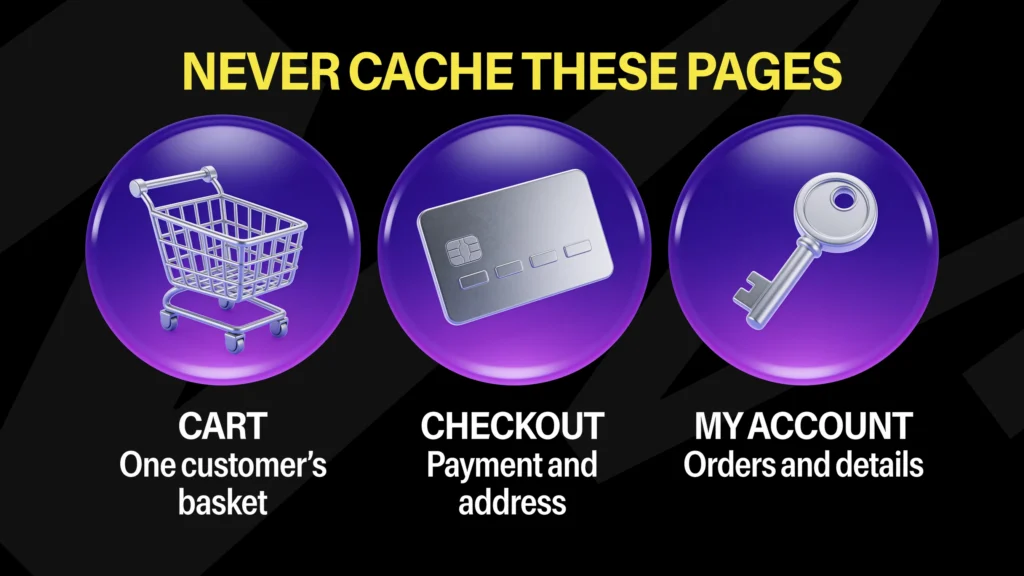
Never cache the cart, the checkout or My Account, and give anything showing live stock or prices a short cache lifetime. WooCommerce’s caching documentation lists those three pages as ones that must stay dynamic, because they show one customer’s own basket and details.
Stock and prices are where caching causes the most damage. On one store, a cached product page was showing stock counts two weeks old, so on Nera Cloud anything that displays live stock now gets a short cache lifetime. Alulux had UK visitors seeing euro prices, because the page cache was serving a location-based currency to the wrong visitors. The fix was to clear the cache, add extra cache settings and test with an Ireland VPN switched on and off. Anyone selling into Ireland from a UK store needs the same test.
The cache can also be bypassed without anyone noticing. On the same night as the stale stock, links from an email link shortener were adding tracking query strings that stopped pages being served from the cache at all. The cart fragments script, which refreshes a mini basket, adds a server request to every page on themes that hard-code a mini basket into the header. The WooCommerce SEO checklist shows how to check for it.
Is logged-in traffic the hidden load?
Logged-in traffic is often the hidden load at a store’s busiest moments. Pages for logged-in customers are built fresh for each person, so most page caches skip them, and every logged-in visit costs a PHP worker. During one evening sale on a store Nera Marketing managed but did not build, more customers logged in to My Account than visited the home page, checking on their orders. That is load with no sale attached.
Scheduled jobs add hidden load too. WP-Cron, the task scheduler built into WordPress, runs when someone loads a page, and WordPress’s own documentation recommends switching it off and using the server’s scheduler instead. On Nera Cloud, WP-Cron is off and the server runs the scheduled jobs every minute, so order emails and stock updates do not wait for the next visitor.
Are images slowing your product pages?
Images slow product pages when they load before they are needed or arrive larger than the screen showing them. WordPress has added lazy loading to images by default since version 5.5 in 2020, as long as each image has a width and height set, so images further down a page wait until the customer scrolls towards them. Themes and page builders can switch that off without saying so.
Nera Marketing’s launch audit of its own WooCommerce service page found 29 of 31 images loading straight away and none offering a smaller size for phones, and the page was fixed before it went live. Run the same check on a product page: count the images that load before anyone scrolls, and look for a smaller version served to phones.
What should your hosting set up so you never have to?
Hosting should give a WooCommerce store enough workers, an object cache, a real server cron, memory headroom and alerts before any limit is reached. These are the settings behind the fixes above, and they are the standard on Nera Cloud for every WooCommerce store build it hosts:
- 80 PHP workers per pool
- A Redis object cache, which keeps database answers in memory so the same question is not asked twice
- WP-Cron switched off, with the server running scheduled jobs every minute
- 768 MB to 1 GB of PHP memory
- Alerts at 70% and 80% of resources, so capacity is added before customers notice
- A busy store taking payments on a server of its own, and other stores sharing with at most three others
- Staging copies and load tests kept off the live server
A store on hosting like this can still be slowed by a query, a plugin or a cache setting, which is why the order of the checks matters more than any single setting.
Planning a WooCommerce build?
We design and build WooCommerce stores that turn more visitors into customers.
See WooCommerce development →