
TLDR
You can customise almost everything on a WooCommerce checkout page: fields, notices, rules and what happens after the order. The payment provider decides which methods appear, whether Apple Pay works and when an order counts as paid. Nera Marketing tests every checkout change with real payments on the live account, through every route into checkout.
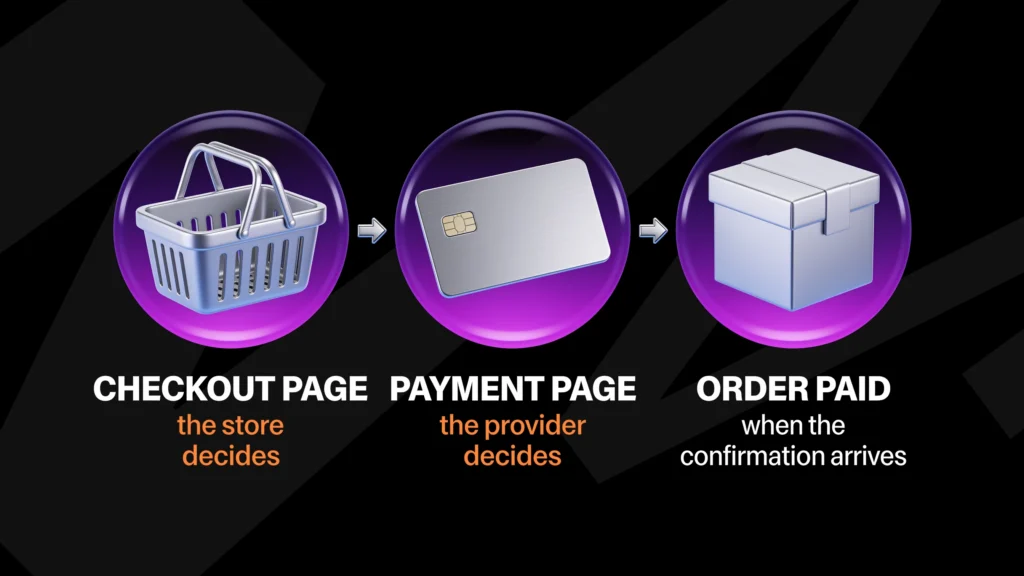
You can customise almost everything on a WooCommerce checkout: the fields, the notices, the rules checked before payment and what the customer sees afterwards. You cannot change what belongs to someone else. The payment provider decides which payment methods appear and what its payment page looks like. Apple decides whether Apple Pay works. An order only counts as paid when the provider’s confirmation reaches the store. Nera Marketing customises the checkout on every WooCommerce development project, and every fault in this article sits on that boundary. Everything here comes from WooCommerce stores we build and host, from made-to-order retailers such as Alulux to high-volume stores that sell out timed releases in minutes. Nera Marketing builds WooCommerce stores engineered to rank in Google and AI search. That puts the store in front of customers who are ready to buy.
What can you change on a WooCommerce checkout, and what can’t you?
The store controls the checkout page and the rules behind it. The payment provider controls the payment methods, its own payment page and the confirmation that marks an order as paid. Apple and Google control their wallets. Of the eleven common checkout changes in the table below, four belong to someone other than the store.
| Change | How it is done | Who controls it |
|---|---|---|
| A required terms tick box | A setting on WooCommerce’s Checkout block | The store |
| An extra field, such as date of birth or a delivery note | WooCommerce’s checkout fields API, an extension or custom code | The store |
| A rule checked before payment: a quantity cap, a spend limit, a country | Custom code, checked on the server | The store |
| A notice before payment | Block or template text | The store, but it has to match the terms |
| Coupon restrictions | Core coupon settings | The store |
| How long an unpaid order holds stock | A WooCommerce setting, 60 minutes by default | The store |
| What the thank you page says | The order received template | The store |
| Which payment methods appear | Switched on in the payment provider’s account | The provider |
| Apple Pay and Google Pay | The provider’s certificates and Apple’s domain verification | The provider, Apple and Google |
| The look of a hosted payment page | The provider’s own settings | The provider |
| When an order counts as paid | The provider’s confirmation reaching the store | The provider, and anything in its way |
The top seven rows are where customising pays. The bottom four are where many of the faults in this article begin, because a change on the store’s side can still break something the provider controls. A hosted platform’s checkout limits the top rows as well. On WooCommerce they are yours.
Block checkout or classic: which should your store run?
Run the block checkout if every extension on your checkout supports it. It has been the default for new stores since WooCommerce 8.3. Extensions that add fields or buttons through the classic checkout’s hooks usually need work before they run on the block version, and WooCommerce lets you switch back to the classic checkout in one click.
WooCommerce’s own cart and checkout documentation names the clearest symptom: a checkout that says there are no payment methods available can mean the gateway does not support the block checkout. Check every payment plugin and field extension on a copy of the store before you switch, and stay on the classic checkout if one of them is not ready. Simple changes need no code on either version. A required terms tick box, for example, is a setting on the block.
Why did the Place Order button disappear?
Because a custom checkout template skipped a hook. On one store built on our own checkout template, choosing one payment plugin removed the Place Order button and put nothing in its place. That plugin hides the default button and prints its own on woocommerce_review_order_after_payment, a hook WooCommerce’s standard payment template fires. Ours never fired it, so the plugin hid Place Order and had nowhere to put its replacement. We fixed the template by the next morning.
The rule we took from it: a custom checkout template has to fire every hook the standard one does, or any plugin that relies on them fails without an error. Adding a payment method to a live store carries a similar risk. On another store, a second payment method broke page loading during a sale, and it took two minutes to fix.
How do you add a checkout field without breaking the checkout?
On the block checkout, register the field through WooCommerce’s additional checkout fields API. It takes four field types (select, text, checkbox and date) in three places: contact details, the address, or the order. Then check that the field appears on every route into checkout and that the server checks it, not only the page.
The additional checkout fields documentation covers the code. The risk is in the routes. On one store, a required question had no place to be answered on one purchase route, a lucky dip option where the store picks the item. Every order through that route failed, and the store had already switched the option off after it failed at the end of an earlier sale. We added the question to that route.
A required question works best where the customer sees it before checkout. On one store, a button that scrolled mobile customers to the question looked broken, and the prompt had to be made more prominent.
Fields that existing customers have never filled in need a route of their own. When one store made date of birth and phone number required at registration, new customers entered them before the account was created, and customers who had registered earlier saw a one-time prompt to add them. Ask once, store the answer against the account, and do not ask again. Paid options that change the price are different again: they belong on the product page and travel to the basket with the item, which is how a configurable product keeps the total on the page equal to the total at checkout.
Some fields are a condition of sale, and those need a record. On Hello Peptides, customers confirm they are over 18 and buying for research use before they can pay. The store checks that confirmation on the server and writes it onto the order with the time it was given, so every order carries its own proof.
Should you allow guest checkout?
Yes, unless an order has to belong to an account. Baymard Institute’s abandonment research puts “the site wanted me to create an account” at 18% of US shoppers’ reasons for abandoning an order, once those just browsing are set aside.
One store we built requires an account because each order is tied to the customer, which is how the store knows which paid extras someone already holds. Customers can browse and fill a basket without one, then sign in or register before they pay. We tell store owners in writing that guest checkout reduces abandonment, so turning it off is a trade to make knowingly. If you do, test the customer who registers and pays in one step as carefully as the customer who is already signed in.
What should a customer see before they pay?
The terms, any condition that changes what they receive, and what happens if they leave the store to pay. Each has to match what the checkout and the terms actually do. One payment provider held a store’s funds until the wording on the site matched its published terms. We changed that wording 18 minutes after the request.
Terms belong on the checkout as a link, and as a required tick box when the store wants a record that the customer agreed. Alulux asked for that tick box on its Irish store, and it was connected within three days, alongside the store’s payment account.
A condition that changes what the customer receives belongs where the customer decides, not at the last step. One store owner asked for a condition to appear in bold immediately before purchase. We put it at the top of the product description instead, where every customer reads it before adding to the basket.
If payment happens on the provider’s own page, say so before the customer leaves. On stores Nera Marketing builds that send customers to the provider’s payment page, the payment option tells the customer they are going to a third-party page, not to refresh, and that they will be brought back to the store once the payment is processed.
The terms cannot promise what the checkout cannot do. One store’s terms listed a monthly cap on credit card spending that the payment provider had no way to apply. The terms were rewritten to match what the checkout accepts. The next section explains why the store could not apply it either.
Which payment options does the store actually control?
The store controls which gateways are connected. The provider controls which methods each gateway offers. On stores that send customers to the provider’s own payment page, Apple Pay, Google Pay and pay-later options are switched on in the provider’s account and appear automatically. As we told one store owner: “We only connect the payment portal to the site.”
That store wanted a pay-later option. The provider had not enabled it, so the store could not offer it. A second payment method the provider had not approved was switched off, so customers would not see an option that did not work. On another store, a wallet button on the store’s own checkout did nothing because it had never been connected to the gateway. On that provider’s account, Apple Pay works only on the provider’s payment page.
A fault inside a provider’s plugin is the provider’s to fix. When payments hung on one store, we compared the provider’s plugin file on the store with the version the provider publishes. It was identical, byte for byte, so nothing on the store had changed it.
Test settings are a provider-side switch that sits on the store. On one live store, Apple Pay domain setup kept failing because the gateway plugin’s test mode box was still ticked, which pointed the live store at the provider’s test environment. Another store went live in the evening still on the provider’s test checkout. Entering live keys alone did not fix it. Live keys plus unticking test mode did, in about 15 minutes, and it is why we now launch in the morning, when developers are on hand.
Store credit is a payment method too. On one store, paying part of an order from store credit depended on a single wallet plugin setting. With it off, credit applied only when it covered the whole basket, which customers read as broken. With it on, the credit comes off first and the card pays the rest. Part payment also needs care when an order is left unpaid. On one part-paid order the customer left at the payment step, the credit was refunded by hand, and when the unpaid order cancelled itself the refund ran a second time.
Why doesn’t Apple Pay show on my checkout?
Because Apple Pay is not a website setting. Apple requires a merchant ID, two certificates, and every domain and subdomain that shows the button registered and verified. The certificates and the domain verification expire. On a hosted payment page the provider holds that setup.
That is what we found on one store: card payments working, Apple Pay failing. The certificate had not been issued. As our support reply put it, the certificate “has to be issued by” the payment provider, and it “isn’t something that can be switched on from the website itself.” The customer’s device matters too. One store owner paid on a PC, saw card fields instead of Apple Pay and worried customers would get stuck. Our answer was that the provider’s page offers the wallet wherever the customer’s device supports it.
Can a store block credit cards at checkout?
Only through the payment integration, and on a hosted payment page that integration belongs to the provider. Apple Pay lets an integration accept debit cards only, and Google Pay has an allowCreditCards setting for the same job. A store cannot reach either when the provider runs the page.
On one store we were managing on behalf of the client, the owner needed a monthly cap on credit card spending. On that store’s hosted payment page, the store only learns whether a card was credit or debit after the money is taken. By then the order exists and its units are assigned, so blocking a card type at that point means refunding a finished order. The provider had no way to cap credit card spend, so there was no partial version to build. The owner switched credit cards off entirely.
What happens after the customer clicks Place order?
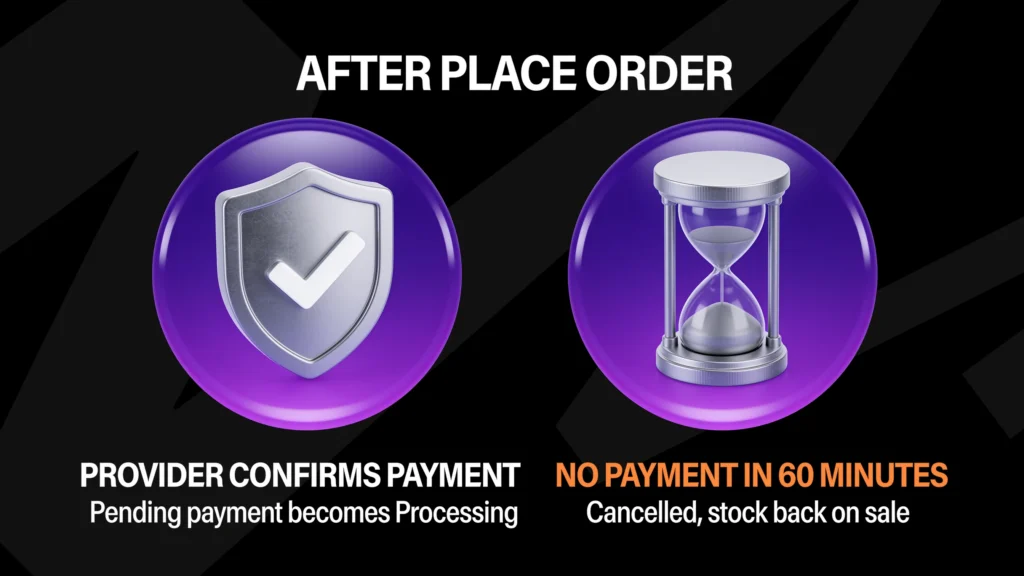
WooCommerce creates the order as Pending payment and sends the customer to pay. The order moves on only when the provider’s confirmation reaches the store. That confirmation comes from the provider’s server, not the customer’s browser, so anything that blocks a server request leaves paid orders unfinished.
| Status | What it means | What happens to stock |
|---|---|---|
| Pending payment | Order created, no payment received | Held for the hold stock time, then the order is cancelled and the stock released |
| On hold | Waiting for payment to be confirmed | Reduced. The hold stock timer does not apply |
| Processing | Paid, waiting to be fulfilled | Reduced |
| Completed | Fulfilled | Reduced |
| Failed | Payment failed or was declined | Returned, if it had been reduced |
| Cancelled | Cancelled by the store, the customer or the hold stock timer | Returned |
The confirmation arrives at an endpoint on the store, which WooCommerce’s payment gateway API routes through wc-api. When one store was moved behind a content delivery network, Nera Marketing set out in writing what had to stay out of its reach: the basket, checkout and account pages, WooCommerce’s own endpoints, and above all the payment callback. In that reply’s words, “The payment provider’s confirmation comes from a server, not a browser, so a bot check will block it.” WooCommerce’s caching guidance makes the same point for the basket, checkout and account pages. The callback needs no cache, no bot check and no rate limit.
The callback and return addresses also point at the store’s live domain. After a host or domain move they need checking again, and one real payment should go through before the move is signed off. During one build, the provider kept emailing webhook failure notices because the endpoint still pointed at the temporary test domain. That is why we connect the payment gateway and the tracking pixel last, once the store sits on its live domain.
Pending payment does not mean something went wrong. It means the order exists and no payment has arrived yet. One store owner asked us whether the store would contact those customers. By default it does not: WooCommerce sends no email for an order in Pending payment, so a customer who gave up at the payment page hears nothing unless something else is set up to reach them. The provider’s dashboard can mislead in the same way. On one store, payments marked Cancelled in the provider’s account were checkouts customers had abandoned, which that provider releases after an hour. Paid orders for items that are never posted out have a quirk of their own. WooCommerce keeps them in Processing unless every item is virtual and downloadable, which is one of the gaps custom code fills.
Why does my store say sold out when it isn’t?
Because unpaid orders are holding stock. On one store a product showed sold out with 172 of its 250 units sold, because units in unpaid orders were counted against it. WooCommerce’s hold stock setting decides how long an unpaid order keeps its units: 60 minutes by default, then the order is cancelled and the units go back on sale.
The setting applies only to Pending payment. An order On hold keeps its stock until someone acts. Set the hold to how long your customers really take to pay. One store cut its hold from 60 minutes on customer feedback, and hold times across the stores we look after run from a few minutes to an hour. The release can surprise you. On one store an item showed 200 of 200 sold, the owner exported the orders, and ten minutes later a cancelled order put six units back on sale. Some plugins add their own basket reservation with its own timer, so check which one your store is running. The tightest version Nera Marketing has specified holds stock for five minutes at checkout, reserves it for good only when payment succeeds, and shows customers a count of paid units only. Before building it, the design was tested against seven ways an order can fail.
Why have my order emails stopped?
Usually because of the email setup, not the checkout. Order emails depend on the sending domain’s DNS records, and when those are lost in a move, mail stops without bouncing. It can run for days before anyone notices that customers are not getting their confirmations.
On one store, a marketing email platform set up on the same sending subdomain as the order emails stopped the store’s own mail until the records were separated, about a day after it was reported. On another, the owner’s new order notifications stopped while our logs showed every message delivered. The block was the owner’s inbox, and it was fixed the same morning. On a new store, the owner got no order notifications at all because the recipient address had never been set, and customer emails stopped when the server’s storage filled up.
What should run at checkout, and what should wait?
Only what decides whether the order can be taken: stock, price, the store’s rules and the hand-off to payment. Tracking calls, marketing emails, rewards and serial numbers can run after the order completes. Every check added to the checkout runs on every order, so its cost multiplies on the busiest day.
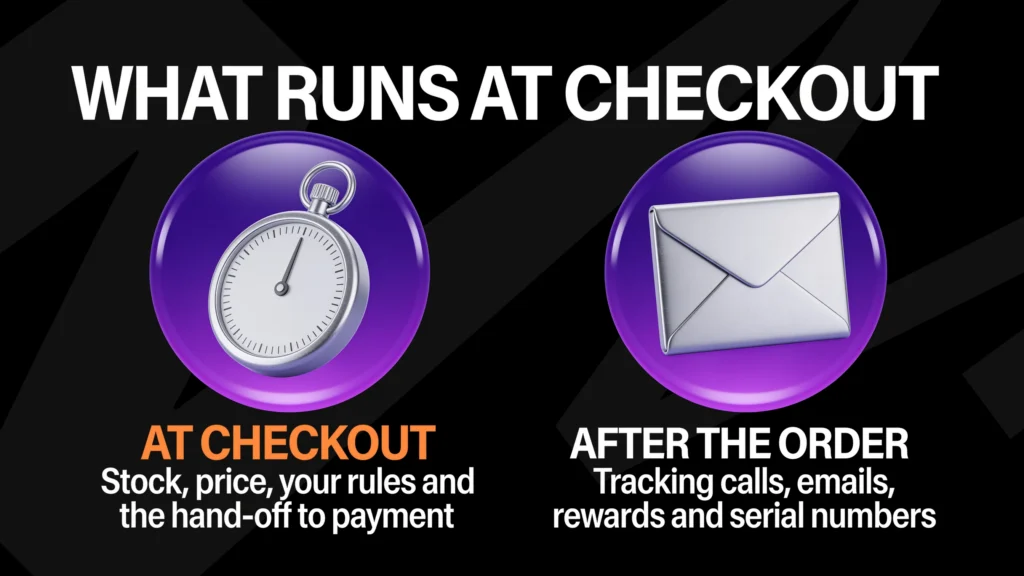
Marketing tools that fire their tracking calls before the order completes make every customer wait for them, and under load that wait stacks up, which what fails first when a store gets busy sets out in full. The number of plugins matters less than what runs between Place order and the payment page.
On stores that write a serial number for every unit sold, we moved that work out of the checkout into a background queue after payment, with a lock on each order so it cannot run twice and a check that every paid order has its numbers. The thank you page had to change with it. The message we wrote says the order is confirmed, the numbers are being generated, and the full list arrives by email within a few minutes, spam folder included. In testing, 2,500 to 5,000 units took about five minutes an order.
Caps belong on the server, and they need checking after every change. One store limited checkout to 100 units an order, and the cap quietly reverted to unlimited. Orders of 200 units or more then froze at checkout, and customers received cancellation emails. Capacity is part of the checkout too. In one store’s first week, baskets showed empty and customers could not check out under traffic because the server had not scaled. We upgraded it by hand 28 minutes after the report. That is the side of the checkout logic we build that customers never see.
When should a sale not go through the checkout at all?
When the price cannot be known until someone looks at the order, or when the buyer wants a conversation before spending. WooCommerce’s checkout takes payment at once. For an order priced by hand, create the order in the admin and send WooCommerce’s own payment link, rather than building a second checkout.
Alulux sells made-to-order doors from a UK store and a separate Irish store, which accepts Irish addresses only at a flat €180 delivery charge across the Republic of Ireland, as the Irish store build explains. Delivery to Northern Ireland has to be priced by hand, so it does not fit a checkout that takes payment straight away. The flow we scoped takes the order details, emails the owner and sends the customer a payment link. WooCommerce already covers that last step: an order created in the admin as Pending payment has a customer payment page link the owner can send.
Many high-value orders never touch the checkout anyway. Most Alulux customers enquire before they buy. As we put it to the Alulux director, “a lot of bifold enquiries convert offline rather than through the checkout.” For a store like that, the checkout serves the customers who are ready and the enquiry form serves the rest.
A store can also sell before its checkout is ready. Hello Peptides took orders through WhatsApp from launch day while card payments were set up, with the trade-off that nothing was written to WooCommerce until card checkout came back.
Changing the terms and restricting the checkout are also separate jobs. When one store owner asked to sell to UK customers only after an order arrived from overseas, our first question was which of the two they wanted: new terms, or a checkout that refuses other addresses.
How do you test a checkout change before customers find it?
Put real payments through every route into checkout on the store’s own live payment account, then check what happened next: the order status, the stock, every email and the tracking. A test that stops at the payment page misses most of the faults in this article.
- Pay for real on the store’s own account. A store built from a template once had another store’s payment account connected at checkout. A test order caught it.
- Check that test mode is off. Live keys alone did not fix a store still on the provider’s test checkout. Unticking test mode did.
- Try every route. A guest, a signed-in customer, a new customer who registers and pays in one step, and every purchase option, including the ones customers rarely choose.
- Place a zero-total order if a coupon can cover a whole basket, and check that it still completes.
- Leave one order unpaid until the hold stock time runs out, and check the stock comes back.
- Check every email and its recipient, the customer’s confirmation and the owner’s new order notification.
- Check the time zone. On one launch morning, products were live and customers were buying, but a plugin treated the sale as not yet started because its start time was set in local time and the server ran on UTC. Orders in that gap were taken without their units, with no error.
- After a domain or host move, check the callback and return addresses again and put one real payment through.
- Test from a clean browser and a phone, not only from the browser you made the change in. Include an iPhone on Safari. One store’s checkout fault showed only there, and Nera Marketing worked it through with the payment provider.
- Change the checkout on a weekday morning, with developers on hand, and never during a sale. Every update and checkout change should be tested on a copy of the store first. On Nera Cloud, the managed hosting Nera Marketing runs, updates are paused for the length of a campaign.
The checkout is the one page where the store’s own changes meet systems the store does not run. Most of what goes wrong there is a change on one side that the other side never heard about.
Planning a WooCommerce build?
We design and build WooCommerce stores that turn more visitors into customers.
See WooCommerce development →